How to Use ElevenLabs Text to Speech: Beginner’s Guide
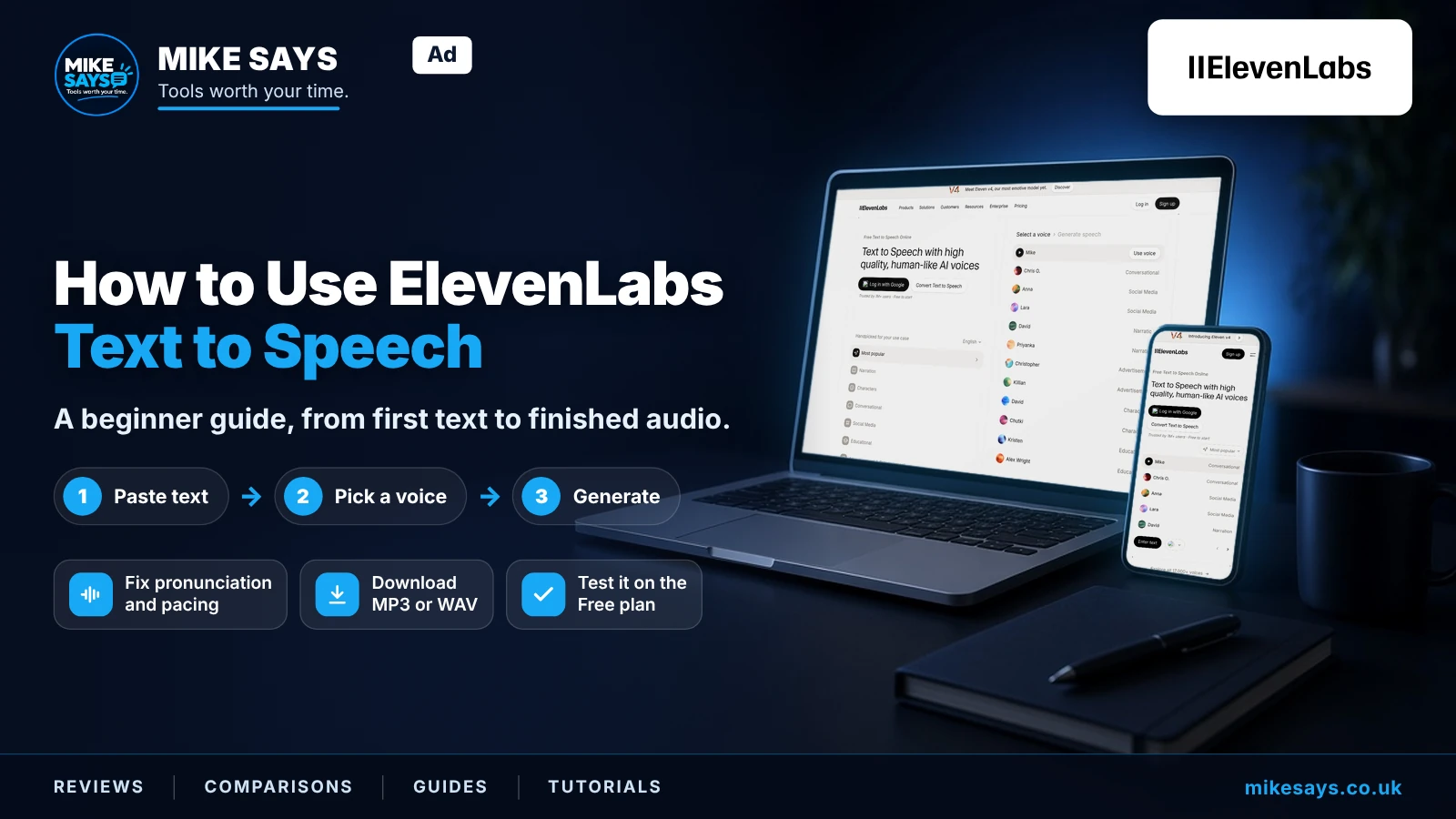
ElevenLabs can turn written text into spoken audio in a few steps. This guide shows you how to choose a voice, pick a model, adjust the main settings, generate your first audio and improve the result.
Mike Says is an ElevenLabs affiliate. If you sign up through a labelled affiliate link and later make a qualifying purchase, I may earn commission at no extra cost to you.
Checked: 10 September 2026 against ElevenLabs' official Text to Speech documentation. Features and limits can change.
1. Start with ElevenLabs Text to Speech
Open ElevenLabs and go to Text to Speech. ElevenLabs' current product guide says the basic workflow is to enter your text, select a voice, optionally adjust the settings and press Generate.
Want to follow along?
You can start with an ElevenLabs Free account and test Text to Speech with your own wording before deciding whether you need a paid plan.
Try ElevenLabs free →Affiliate link · I may earn commission from a qualifying purchase at no extra cost to you.
2. Paste in the text you want spoken
Type or paste your script into the Text to Speech input box. For your first test, keep it short so you can quickly compare voices and settings.
ElevenLabs recommends writing numbers out as words where possible and being careful with unusual abbreviations, symbols and emojis because these can make pronunciation less predictable.
3. Choose a voice
Choose the voice you want to use. ElevenLabs says voice selection has the biggest influence on the final result, ahead of model selection and the other voice settings.
Try more than one voice with the same short script. In my own initial testing, the default voices I tried were noticeably different in style but all sounded good, so this is worth experimenting with rather than picking the first option.
4. Choose the right model
The model affects quality, expressiveness, language support, latency and how much text can be handled. ElevenLabs currently highlights several options, including Eleven v3 for expressive speech, Multilingual v2 for stable long-form multilingual generation, and Flash v2.5 for low-latency generation.
If you are just learning the interface, you do not need to overcomplicate this. Pick a suitable model, listen to the result and compare another model if the delivery is not right for your project.
5. Adjust the voice settings
The main controls include settings such as stability, similarity and speed. ElevenLabs' current guide says a common starting point is stability around 50, similarity around 75 and style at 0, but the best settings depend on the voice and performance you want.
Speed defaults to 1.0. ElevenLabs currently allows values from 0.7 to 1.2 and warns that extreme values can affect quality.
6. Generate and listen
Press Generate Speech and listen to the output. AI speech generation is non-deterministic, so the same settings do not guarantee an identical result every time.
Listen for pronunciation, pacing, emphasis and whether the chosen voice fits the text. Change one thing at a time so you can tell what improved the result.
7. Improve awkward pronunciation and pacing
Start by making the written input clearer. Spell out ambiguous numbers, simplify unusual abbreviations and use punctuation naturally.
Pause controls depend on the model. Eleven v3 uses audio tags and punctuation rather than SSML break tags. Multilingual v2, Flash v2 and Flash v2.5 can use break tags for controlled pauses. Check the current model guidance before adding them.
8. Download your finished audio
Generated Text to Speech audio can be downloaded from your history. ElevenLabs' current help documentation lists MP3, WAV, M4A and FLAC download options, with additional formats available through the Advanced download choices.
Can I use ElevenLabs Text to Speech for free?
Yes, ElevenLabs currently has a Free plan, so it is sensible to test your own scripts and voices before paying. ElevenLabs says Text to Speech generations made through the website are limited to 2,500 characters in a single generation on free plans and 5,000 on paid plans. For longer-form work, ElevenLabs recommends Studio.
Important: ElevenLabs' documentation says commercial use requires a paid plan. If the audio is for monetised content, advertising or client work, check the current licence and plan terms first.
Which ElevenLabs model should a beginner use?
There is no single best model for every project. For expressive performance, Eleven v3 is designed to offer richer delivery. For longer, stable multilingual generations, ElevenLabs highlights Multilingual v2. For low-latency applications, Flash v2.5 is designed for speed.
My beginner tips
Keep the first test short. It makes comparisons easier.
Test several voices. Voice choice matters more than obsessing over every slider.
Use your real script. A voice that sounds good on a demo sentence may not suit your actual content.
Change one setting at a time. Otherwise it is hard to know what helped.
Start free. Upgrade when you actually need commercial rights, more capacity or paid features.
Ready to test your first voice?
Use a short piece of your own text, compare a few voices and only pay if ElevenLabs suits your project.
Try ElevenLabs free →Affiliate link · I may earn commission from a qualifying purchase at no extra cost to you.
What should you read next?
Producing client work or monetised content? Check our ElevenLabs commercial-use guide for Free output, upgrades and cancellation.
Want to see the wider set of creative tools? Read what ElevenCreative is and how its tools fit together.
For my hands-on experience, read my ElevenLabs review. If you want to compare plans before upgrading, see my ElevenLabs pricing guide. For transcripts, see speech to text.